> ## Documentation Index
> Fetch the complete documentation index at: https://hub.agentr.global/llms.txt
> Use this file to discover all available pages before exploring further.
# Domain Configuration
> Set up your branded careers portal by connecting your company domain
# 🌐 Custom Domain Setup
Configure a custom domain to host your branded careers page (e.g., `careers.yourcompany.com`) and share job links under your company's domain.
***
## 🛠️ Step 1: Access Domain Settings
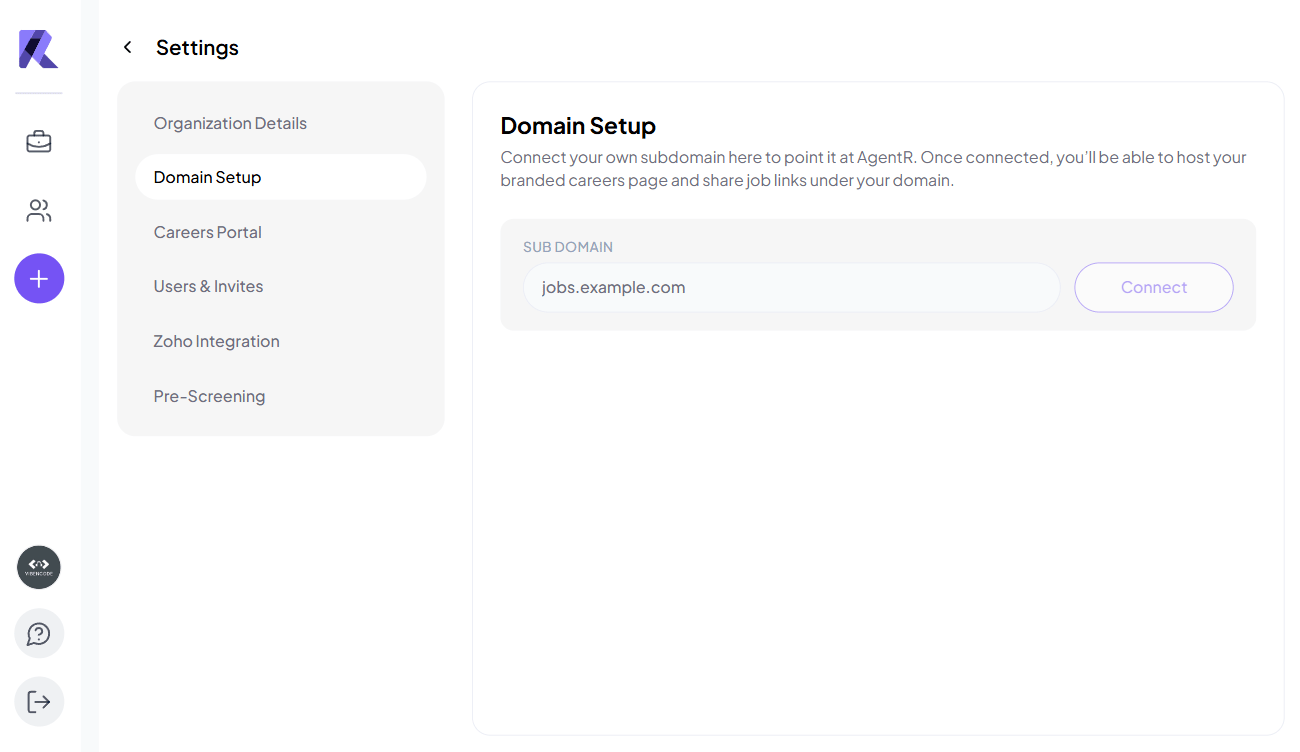
1. Navigate to: **Settings (Organisation's Logo)** → **Domain Setup**
2. The domain configuration panel will appear:
 ***
## ✍️ Step 2: Enter and Connect Your Subdomain
1. In the **Sub Domain** field, enter your desired subdomain:
* Example: `careers.yourcompany.com` or `jobs.yourcompany.com`
***
## ✍️ Step 2: Enter and Connect Your Subdomain
1. In the **Sub Domain** field, enter your desired subdomain:
* Example: `careers.yourcompany.com` or `jobs.yourcompany.com`
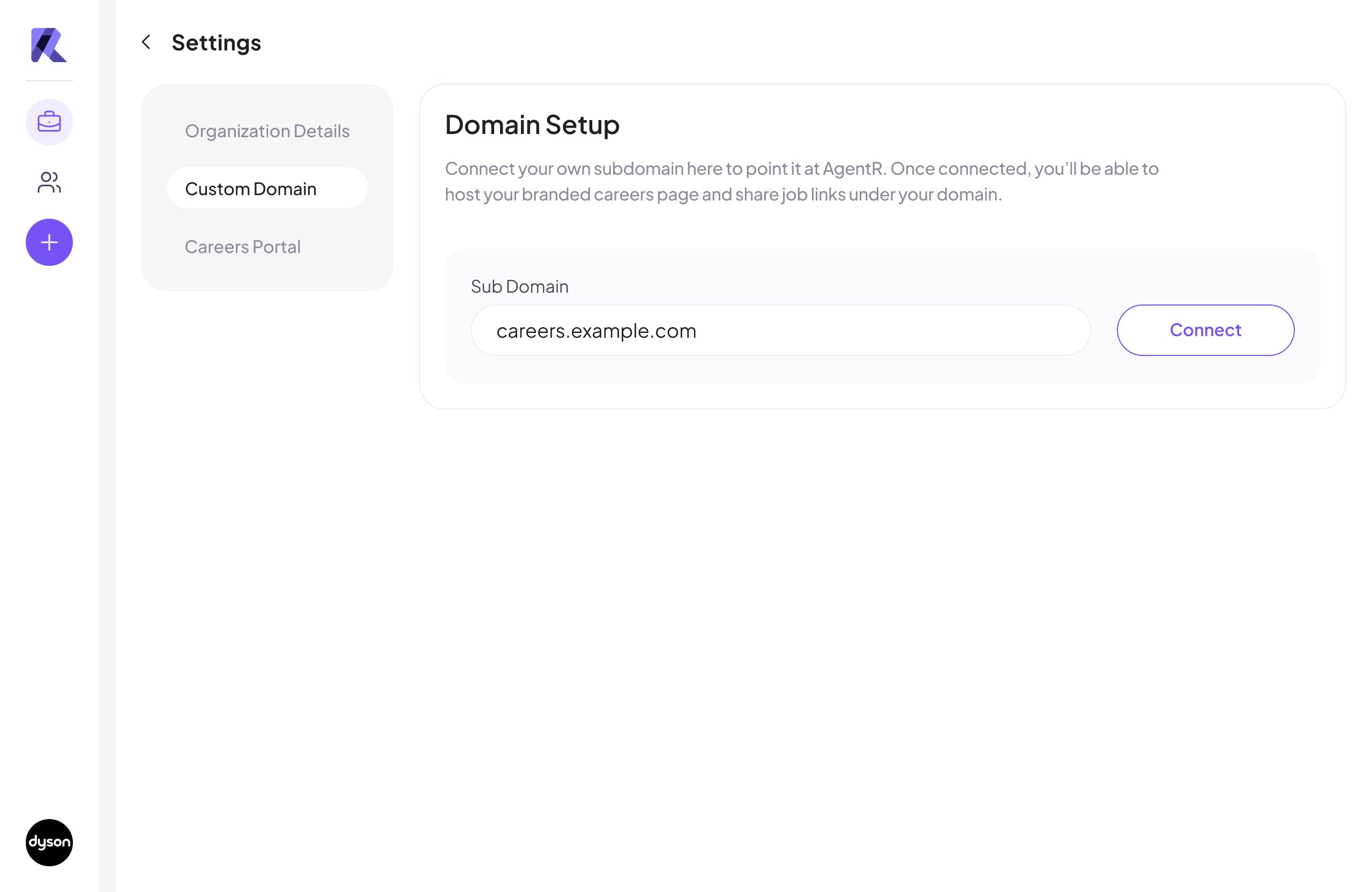 2. Click the **Connect** button.
> ⏳ Please wait while AgentR verifies your subdomain and prepares DNS records. This may take a few seconds.
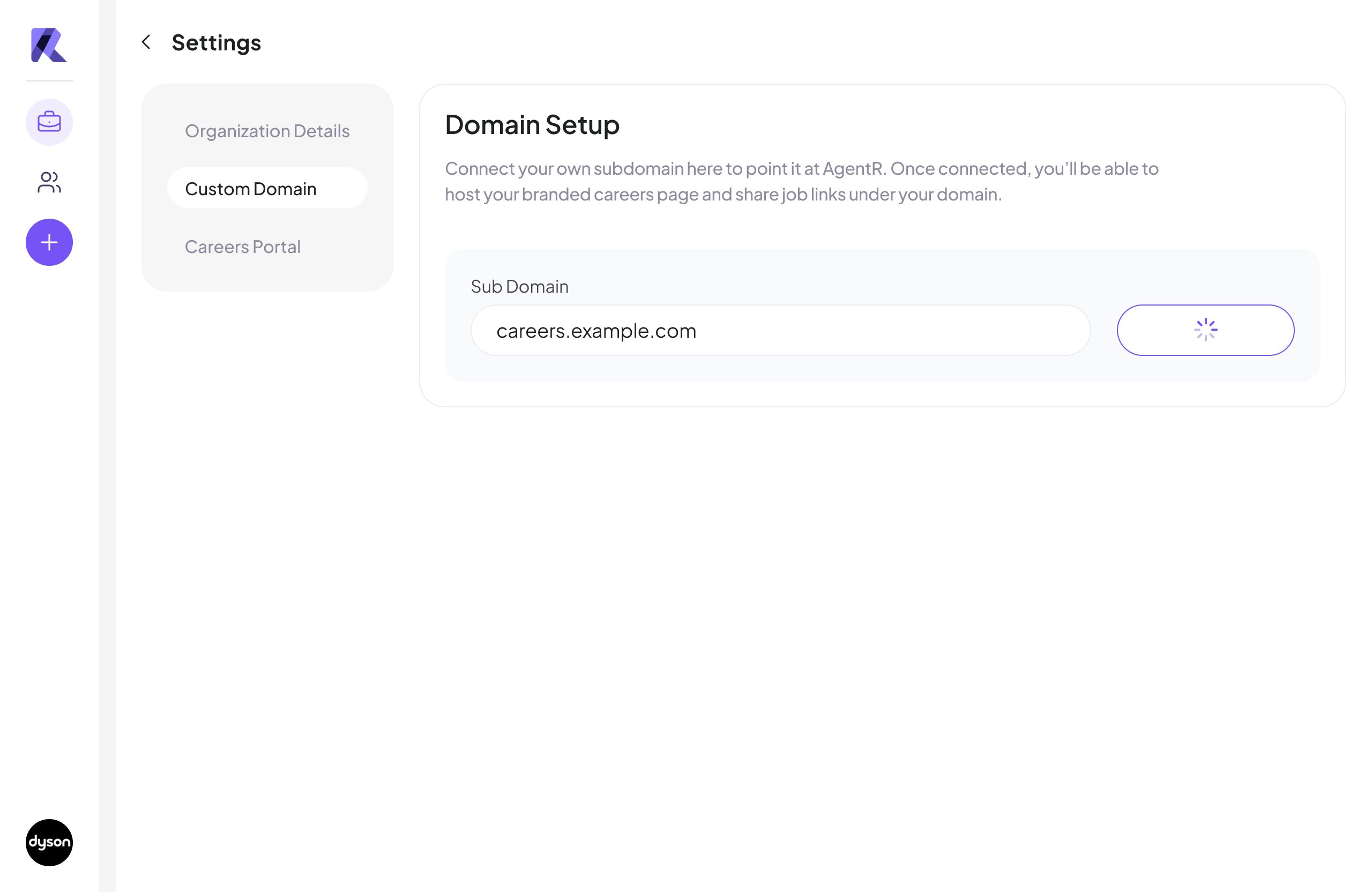
2. Click the **Connect** button.
> ⏳ Please wait while AgentR verifies your subdomain and prepares DNS records. This may take a few seconds.
 ***
## 🧾 Step 3: Update DNS Records
Once verification is initiated, you’ll see DNS settings that need to be configured:
* You can copy the records manually
* Or click **Export DNS** to download and share with your technical team
* How to Set Up DNS Records on Popular Domain Providers:
- [🔗 Hostinger DNS Guide](https://support.hostinger.com/en/articles/1583249-how-to-manage-dns-records-at-hostinger)
- [🔗 GoDaddy DNS Guide](https://www.godaddy.com/en-in/help/manage-dns-records-680)
- [🔗 Dynadot DNS Guide](https://www.dynadot.com/community/help/question/set-up-DNS)
* After DNS is configured, click the **Verify DNS** button.
***
## 🧾 Step 3: Update DNS Records
Once verification is initiated, you’ll see DNS settings that need to be configured:
* You can copy the records manually
* Or click **Export DNS** to download and share with your technical team
* How to Set Up DNS Records on Popular Domain Providers:
- [🔗 Hostinger DNS Guide](https://support.hostinger.com/en/articles/1583249-how-to-manage-dns-records-at-hostinger)
- [🔗 GoDaddy DNS Guide](https://www.godaddy.com/en-in/help/manage-dns-records-680)
- [🔗 Dynadot DNS Guide](https://www.dynadot.com/community/help/question/set-up-DNS)
* After DNS is configured, click the **Verify DNS** button.
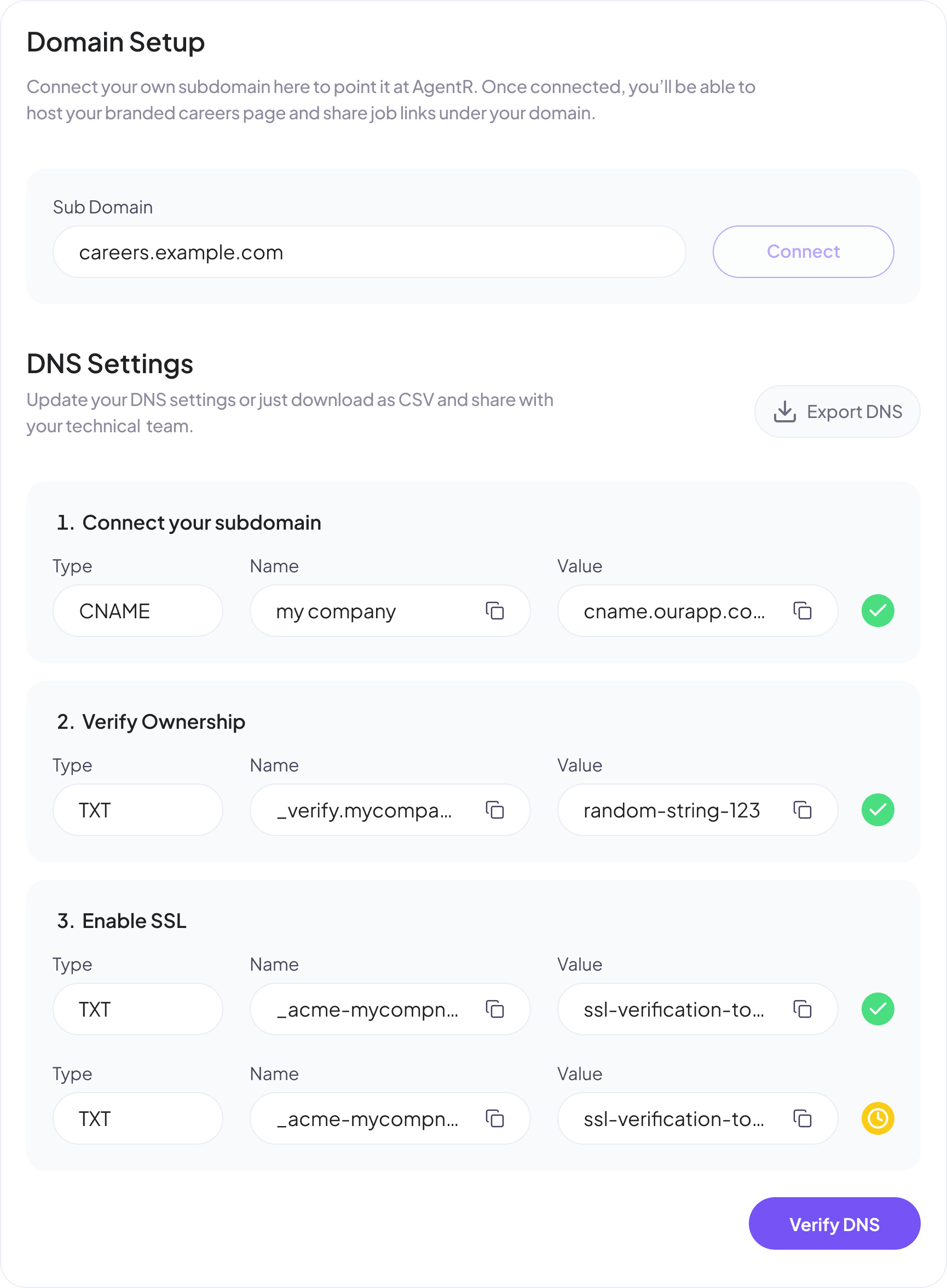 *Example of DNS records generated after clicking "Connect"*
> ⚠️ Be sure all DNS records are added correctly. DNS propagation may take 24–48 hours depending on your provider.
* Once all records are validated, you’ll see a success message:
> ✅ *Your domain connection was successful.*
*Example of DNS records generated after clicking "Connect"*
> ⚠️ Be sure all DNS records are added correctly. DNS propagation may take 24–48 hours depending on your provider.
* Once all records are validated, you’ll see a success message:
> ✅ *Your domain connection was successful.*
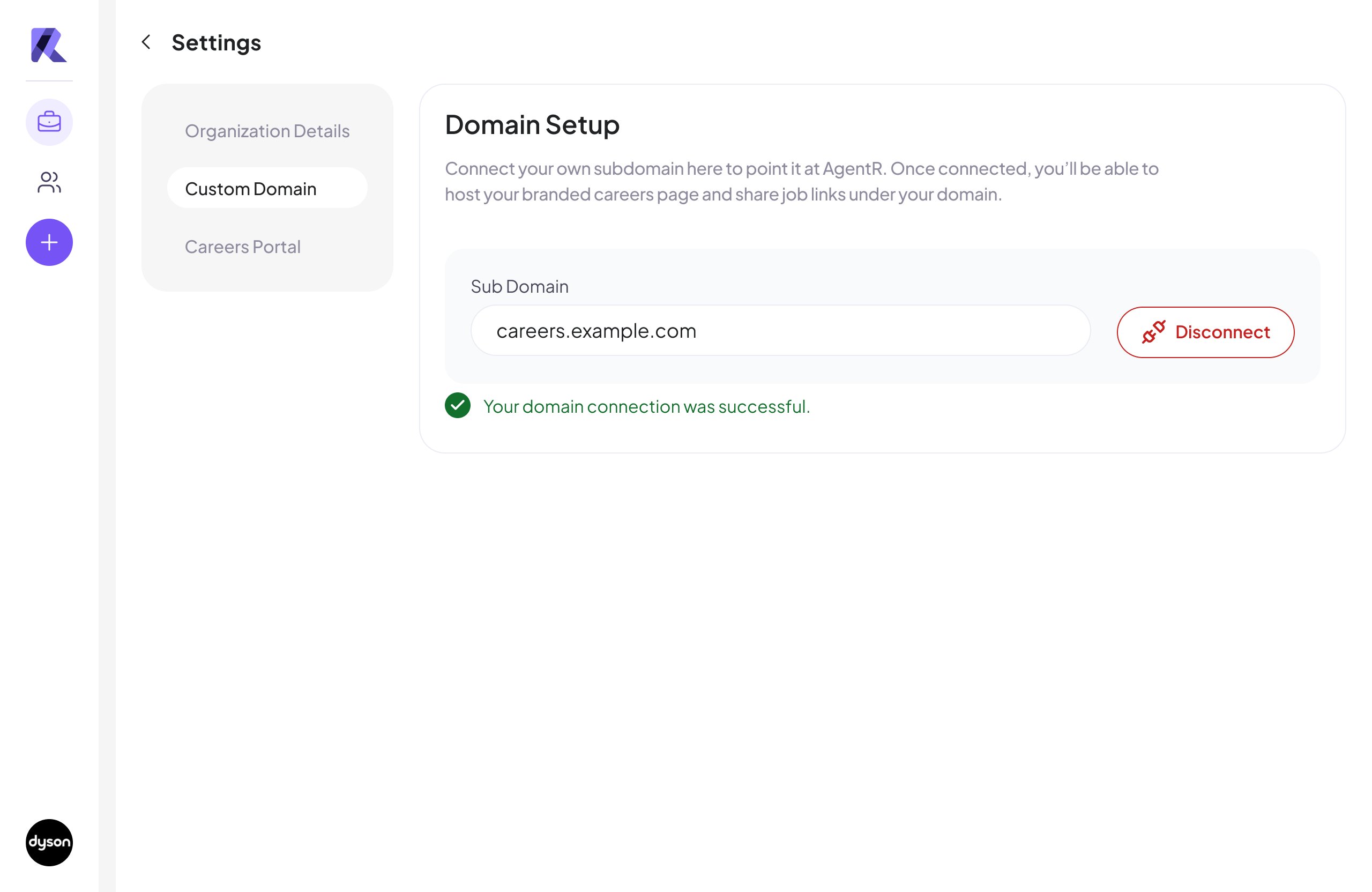 This means your branded careers portal is now live at the configured subdomain.
## 🔌 Disconnecting Your Domain
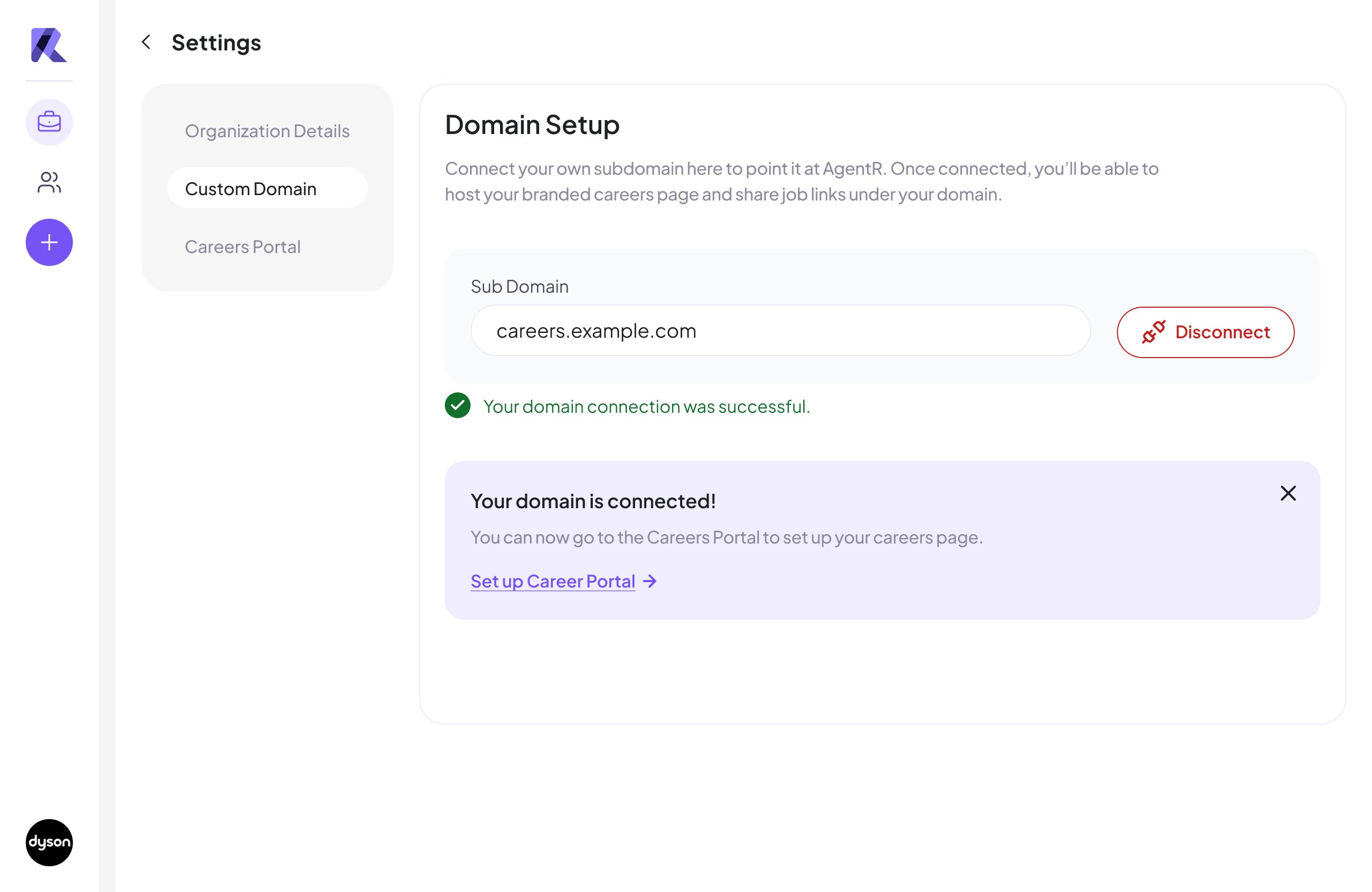
1. Click **Disconnect** next to your domain
2. Confirm the prompt:
> "Disconnecting will remove your custom careers page."
> **Cancel** | **Yes, Disconnect**
This means your branded careers portal is now live at the configured subdomain.
## 🔌 Disconnecting Your Domain
1. Click **Disconnect** next to your domain
2. Confirm the prompt:
> "Disconnecting will remove your custom careers page."
> **Cancel** | **Yes, Disconnect**
 ***
***